
Touch & Win Creator allows eligible SimFly users to create, configure, schedule and publish their own precision-landing competitions for the community.
As a Creator, you define the mission identity, route requirements, aircraft, runways, scoring geometry, schedule, Entry Fee and Creator Economy settings available through the Mission Builder. Missions do not all have to follow the same style: they can be simple, technical, unusual, highly competitive or deliberately challenging.
The important point is that the information shown to pilots must accurately describe the challenge, public content must comply with SimFly rules, and the Creator feature must not be used for fraud, abuse or deliberate exploitation of platform errors.

Who Can Create a Touch & Win Mission? #
An active Premium Membership is required to create a new Touch & Win Draft and to publish a mission.
If a Premium Membership expires after a Draft has already been created, the Draft is not lost. It can still be opened, edited and saved, and the Creator can continue checking date availability. An active Premium Membership is required again before publication.
The Premium requirement is checked again when the Creator publishes the mission.
Normal cancellation rights for an already published mission depend on the mission lifecycle and cancellation rules, not on whether the Creator’s Premium Membership is still active.
Important
Premium is a requirement for the Creator. In the current user-created workflow, Allowed membership is shown as All, so the mission can be open to the wider SimFly community according to the current platform rules.
Creator Workspace and Limits #
The Touch & Win Submissions page is the main workspace for creating and managing your missions. From here you can create a mission, reopen Drafts, review published missions, search, filter by status and open individual mission pages.
The workspace also displays the Creator limits currently applied by the Brain. The current reference values are:
| Limit | Current reference value |
|---|---|
| Open Drafts per Creator | 5 |
| Published / Scheduled missions per Creator | 1 |
| Concurrent user-created missions across the platform | 5 |
These values are configurable. The limits displayed directly by SimFly are always the authoritative current values.
A Scheduled or Active mission occupies the Creator’s Published slot until the mission lifecycle releases it. The Draft limit is separate, so you may continue preparing Drafts while another mission is already published, provided you still have Draft capacity.
Mission lifecycle: Draft → Scheduled → Active → Ended → Payout Pending → Paid. A mission may also become Cancelled when cancellation is permitted.
- Draft — the mission is still being prepared and does not reserve global calendar capacity.
- Scheduled — the mission has been published for a future start date. It occupies the Creator’s Published slot and reserves the required calendar capacity.
- Active — the mission is currently within its configured participation period.
- Ended — the configured end time has passed, but settlement eligibility has not necessarily been reached yet.
- Payout Pending — the mission is waiting for or is eligible for the automatic settlement process after the required waiting period.
- Paid — settlement has been completed.
- Cancelled — the mission was cancelled while cancellation was still permitted.
Mission Builder and Mission Identity #
The Mission Builder is organized into five main steps:
- Mission — Identity & aircraft
- Requirements — Weight & route
- Runways — Thresholds & scoring
- Schedule — Dates & economy
- Review — Final checks & publish
You can save your Draft and return later. Review Mission is the Creator’s final verification step; it is not a normal manual approval queue.

Mission Name
The public name of the competition. The current interface allows up to 80 characters. Use a clear, recognizable name connected to the airport, challenge or theme.
Public Description
The public explanation of the challenge. The current interface allows up to 800 characters. Use it to explain the idea, difficulty or special characteristics of the mission without repeating technical information that is already shown automatically by the platform.
Entry PAX
The Entry Fee charged for a paid participation according to the normal Touch & Win participation workflow. Entry PAX contribute to the mission economy and prize pool.
The current Entry Fee range is minimum 1 PAX and maximum 50 PAX.
Allowed Membership
For the current user-created workflow this is shown as All.
Mission Origin
Automatically set to User-created.
Allowed Airplanes
The current Creator version supports multiple allowed aircraft. A Creator can select from 1 up to a maximum of 10 aircraft types per mission.
Use the search field to find an aircraft by ICAO code or aircraft name. Each selected aircraft is added to the mission’s allowed-aircraft list.
The complete allowed-aircraft list is shown on the public mission page, so pilots can see which aircraft they may use before participating.
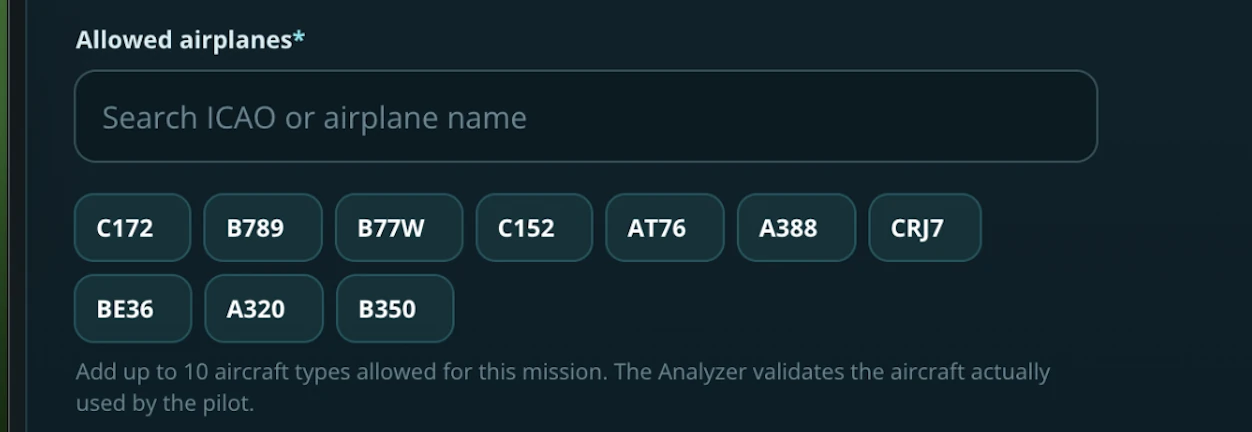
For each individual participation, the pilot chooses one aircraft from the mission’s allowed-aircraft list. The aircraft selected in SimFly must match the aircraft actually used in the simulator. The Analyzer continues to validate the aircraft used during the flight.
Important — one Landing Weight range for the whole mission
Minimum and Maximum Landing Weight are configured once for the mission. They are not configured separately for each allowed aircraft.
This means that if several aircraft are selected, the same published Min/Max Landing Weight range applies to all of them. The Creator should therefore make sure that the configured range is appropriate for every aircraft they intend pilots to use.
Challenge Image / Runway Challenge Cover
Every user-created mission requires a public Challenge Image. The current UI accepts WEBP or JPG/JPEG and shows a maximum image size of 1672 × 940 pixels. A 16:9 image, for example around 1600 × 900 px, is recommended for a clean presentation.
The Challenge Image can be replaced while the mission is still editable.
Separate images for Runway #1 and Runway #2 are not required. Runway visualization is generated from the interactive runway configuration.
Public Content and Image Rules #
The Creator is responsible for the images, text, names, logos and other public material associated with the mission. Only use content you own, content you are authorized to use, or material covered by a licence that permits its use. An image being available on the internet does not automatically mean that it is free to reuse.
Content is not allowed if it includes, promotes or contains:
- pornographic, sexually explicit or sexually exploitative material;
- content involving or sexualizing minors;
- hate, racism, discrimination, extremist or terrorist propaganda;
- graphic gore, credible threats, harassment or intimidation;
- illegal, fraudulent or deliberately deceptive content;
- copyright, trademark, privacy or other third-party rights violations;
- unauthorized private or personal information;
- impersonation of SimFly, another User, an airline, company or organization;
- false claims that a user-created mission is an official or sponsored SimFly event;
- phishing, malware, spam or malicious links.
A mission being difficult, easy, unusual or highly creative is not a violation by itself. Creative freedom is an intentional part of Touch & Win Creator.
Flight Requirements and Route Rules #
The Requirements step defines the operational conditions of the flight, including landing weight, route rule and the mandatory Arrival ICAO.
Landing Weight — How the Minimum and Maximum Work
Minimum and maximum landing weight are expressed in kilograms (kg). The minimum value cannot be greater than the maximum value.
These values are an actual Touch & Win mission restriction. They are not only informational fields and they do not gradually increase or decrease the score.
During flight analysis, the Analyzer compares the aircraft’s recorded landing weight with the range published by the Creator.
- If the recorded landing weight is inside the configured range, the weight requirement is satisfied.
- A weight exactly equal to the minimum is valid.
- A weight exactly equal to the maximum is valid.
- If the recorded landing weight is below the minimum or above the maximum, the Analyzer applies the Weight Out of Range penalty.
- Weight Out of Range reduces the final Touch & Win Total Score to 0.
Important
The Minimum and Maximum Landing Weight fields define the weight range accepted by the mission. They should not automatically be interpreted as universal manufacturer-certified minimum and maximum landing weights for every simulator model, add-on or aircraft variant.
Why the Creator sets this range
The landing-weight range is part of the published mission requirement that participants use to prepare their flight.
In practical terms, by configuring a minimum and maximum landing weight, the Creator is telling pilots:
“For this mission, your aircraft must land with a recorded weight between X kg and Y kg.”
This means the Creator is not simply entering aircraft specifications. The Creator is defining an operational condition of the challenge.
Participants can plan their flight around this requirement by managing factors such as:
- fuel loaded before departure;
- payload;
- passengers and cargo;
- expected fuel consumption during the flight;
- the resulting expected landing weight.
For example, if a mission requires a landing weight between 60,000 kg and 70,000 kg, a pilot should plan the aircraft so that the recorded landing weight falls inside that window.
A landing at 65,000 kg satisfies the requirement.
A landing at 59,999 kg or 70,001 kg does not, and the Weight Out of Range penalty reduces the final Touch & Win Total Score to 0.
For this reason, the Creator should choose the range carefully. It must be wide enough for the intended aircraft and simulator add-on, while still representing the kind of challenge the Creator wants participants to fly.
The Creator is responsible for choosing a sensible range for the aircraft allowed in the mission. Different variants or simulator add-ons may represent aircraft weights differently.
One Landing Weight range for all allowed aircraft
When a mission allows multiple aircraft, the Minimum / Maximum Landing Weight remains a single mission-level requirement. The same published range applies to every aircraft selected for that mission.
There is no separate weight range for each aircraft.
For example, if a mission allows several aircraft but publishes a Landing Weight range of 500–1,200 kg, every allowed aircraft is evaluated against that same 500–1,200 kg range. An aircraft landing outside it receives Weight Out of Range and a final T&W Total Score of 0.
For this reason, be especially careful when combining aircraft with very different weight classes. The shared range should make sense for all aircraft that you actually want pilots to use.
If landing weight is not intended to be a special part of the challenge, it is recommended to use a realistic but sufficiently broad range for the selected aircraft so that pilots are not unintentionally given a zero Touch & Win score because of an unnecessarily restrictive value.
If weight is intentionally part of the challenge, the Creator can use a narrower range, but participants should understand that landing outside that published range results in a final Touch & Win score of 0.
Example 1 — C172 mission
Suppose the Creator configures:
Minimum Landing Weight: 500 kg
Maximum Landing Weight: 1,200 kg
| Recorded landing weight | Result |
|---|---|
| 500 kg | Valid — exactly on the minimum boundary |
| 850 kg | Valid — inside the configured range |
| 1,200 kg | Valid — exactly on the maximum boundary |
| 499 kg | Weight Out of Range — final T&W Total Score 0 |
| 1,201 kg | Weight Out of Range — final T&W Total Score 0 |
Example 2 — A21N / large-aircraft mission
For illustration, suppose a Creator configures a mission with:
Minimum Landing Weight: 40,600 kg
Maximum Landing Weight: 79,200 kg
| Recorded landing weight | Result |
|---|---|
| 40,600 kg | Valid — exactly on the minimum boundary |
| 70,000 kg | Valid — inside the configured range |
| 79,200 kg | Valid — exactly on the maximum boundary |
| 40,599 kg | Weight Out of Range — final T&W Total Score 0 |
| 79,201 kg | Weight Out of Range — final T&W Total Score 0 |
The A21N numbers above are an example mission configuration only. They must not be treated as a universal recommended range for every A321neo/A21N variant or simulator add-on. Creators should verify the aircraft or add-on they intend participants to use before publishing the mission.
Creator recommendation
Before publishing, ask yourself whether landing weight is meant to be:
- a general compatibility requirement — use a realistic, sufficiently broad range for the selected aircraft; or
- part of the competitive challenge — use a deliberately narrower range and make the requirement clear to participants.
Because an incorrect range can reduce a participant’s final Touch & Win score to 0, this is one of the values that should be checked carefully during the Review step.
Defined Departure
With Departure ICAO, the Creator defines a specific departure airport and a required Arrival ICAO. The pilot must depart from the selected airport and finish at the required arrival airport.

Minimum Distance
With Minimum distance, the Creator does not require one specific departure airport. Instead, a minimum distance in NM is configured while the Arrival ICAO remains mandatory.
Important
The Analyzer measures the actual flown distance. Airport-to-airport distance alone does not guarantee that the requirement has been met. If the actual recorded flight distance is below the configured minimum, the applicable Touch & Win penalty may be applied.

Changing the Arrival ICAO
The Arrival ICAO determines which runway data is loaded into the Mission Builder. If you change the Arrival ICAO while editing a Draft, review the runway configuration again before publishing.
After changing the arrival airport, always recheck:
- Runway #1 and Runway #2 selection;
- Threshold A/B;
- Effective Scoring Coordinates;
- scoring limits;
- interactive runway previews.
Runway Configuration #
Every user-created Touch & Win mission requires Runway #1. Runway #2 is optional. The current Creator workflow therefore supports a maximum of two configured runway pairs per mission.
A runway configuration such as 06/24 represents both ends of the same physical runway. You do not need to create one configuration for 06 and another for 24.
The Builder intentionally separates physical runway data from Touch & Win scoring geometry. Physical endpoints, physical length and physical width describe the real runway; thresholds, effective coordinates and scoring limits define the challenge.
The Technical runway details shown by the Builder are reference data loaded from the Analyzer dataset and are read-only for the Creator.

Scoring Threshold Positions
Threshold A and Threshold B are expressed in feet and move the effective scoring threshold inward from the corresponding physical runway end. The Builder recommends threshold offsets as the main editing method.
The − / + controls change the offset in 25 ft steps. The minimum value is 0 ft. Threshold A and Threshold B are independent, so the two runway ends can use different offsets.
Reset thresholds to runway defaults returns both threshold offsets to zero and restores the effective coordinates to the physical runway references currently loaded for that runway.
Effective Scoring Coordinates (Advanced)
A latitude/longitude and B latitude/longitude update automatically when the threshold offsets change. They remain manually editable for advanced adjustments. The UI displays these coordinates with five decimals.
The final effective coordinates are preserved with the Draft. When the Draft is reopened, the Builder can reconstruct the displayed threshold offsets from the saved effective coordinates and the physical runway references.
Required Scoring Limits
The current UI labels are:
- Max rollout deviation from centerline (ft)
- Longitudinal zero-score distance (ft)
Both values must be greater than zero. Physical runway width and physical runway length must not be confused with these scoring limits.
Interactive Runway Preview
The map visualizes the physical runway, effective thresholds, centerline, scoring bands and lateral guides. Changing offsets, coordinates or scoring guides redraws the geometry without intentionally resetting the Creator’s current zoom or pan. Use Fit Runway to recenter the runway when needed.
Runway #2 is independent
If Runway #2 is configured, it has its own threshold positions, effective coordinates and scoring limits. The Analyzer uses the values associated with the runway actually selected during flight analysis.

How Touch & Win Scoring Works #
The Builder includes a dynamic Score Guide for the active runway. The tables use the values of the selected runway and correspond to the scoring bands displayed on the map.
In the Scoring V2 contract shown by the Builder:
Total Touch Score = Longitudinal Score + Max Lateral Rollout Score
The separate touchdown Lateral Score may remain visible to the pilot, but it is not added directly to the Total Touch Score.
The map can show the best possible score based on touchdown position, while the real result can fall if the aircraft moves farther from the centerline during rollout.
The coloured longitudinal bands provide a visual guide to progressively lower longitudinal points as the touchdown moves farther from the effective threshold. The parallel lateral guides show the max-lateral rollout scoring limits.
Max-lateral rollout is evaluated during the relevant rollout phase; the real result can therefore differ from what the touchdown position alone appears to show.

The Mission Builder is a configuration guide. The official flight result is always calculated by the Analyzer using the actual data recorded during the flight.
Landing on an unconfigured runway
If a pilot reaches the correct destination airport but lands on a physical runway that was not configured for the mission, the Touch & Win participation can remain recorded and visible in the leaderboard, while a 100% Touch & Win score penalty is applied. The final Touch & Win result becomes 0. The normal SimFly flight and its normal XP/PAX handling remain separate from this Touch & Win penalty.
Schedule and Calendar Availability #
Creator mission dates use UTC / Zulu.
- Start Date begins at 00:00:00Z.
- End Date remains active through 23:59:59Z.
- The date range is inclusive.
The current reference duration is 3 to 30 days. These limits are configurable, so the values displayed in the Mission Builder are authoritative.
The current global reference capacity is 5 concurrent user-created missions. Capacity is checked day by day across the entire requested range.

Check Availability does not reserve the dates. It checks the current situation at that moment. A Draft never reserves global calendar capacity. The Brain rechecks Creator and global capacity when the mission is actually published, and capacity is reserved only after a successful Publish.
If even one day in the requested range has reached full capacity, the entire requested range cannot be published.
When possible, SimFly may suggest the first available consecutive range with the same duration. Dates are never changed silently: the Creator chooses whether to use the alternative.

Creator Economy and Prize Distribution #
The Creator Economy explains how Entry PAX are handled for a user-created mission. The applicable values are managed by the Brain and stored in the mission’s economic snapshot at publication.
The main elements are:
- Entry Fee — PAX charged for a paid participation according to the normal mission workflow. The current allowed range is 1–50 PAX.
- Live / Gross Pool — Entry PAX generated by paid participations considered by the system.
- Fee Threshold — current reference value: 10 valid paid participations.
- Creator Share — current configurable range: 1%–20%, default 10%.
- Burn — current reference value: 15%.
- Leaderboard Pool — the remaining pool available for winner rewards.
How the fee threshold works
At or below the fee threshold, Creator Share and Burn are not applied. Once the threshold is exceeded, Creator Share and Burn apply to the entire mission pool according to the economic snapshot.
Example
20 paid participations × 5 PAX = 100 PAX Gross Pool.
With Creator Share 10% and Burn 15%:
- Creator Share: 10 PAX
- Burn: 15 PAX
- Leaderboard Pool: 75 PAX
Standard winner distribution
| Position | Standard share |
|---|---|
| 1st | 30% |
| 2nd | 20% |
| 3rd | 15% |
| 4th | 10% |
| 5th | 7% |
| 6th | 5% |
| 7th | 4% |
| 8th | 3% |
| 9th | 3% |
| 10th | 3% |
If fewer eligible winning positions exist, the payout system may normalize the distribution across the actual eligible winners according to the active Touch & Win rules.
Snapshot at publish
The economic settings applicable to the mission are stored when the mission is published. A later change to SimFly’s global default values does not retroactively change the published mission’s economic configuration.
Review and Publish #
The Review step summarizes the mission before publication, including the mission, arrival, route, allowed-aircraft list, shared landing-weight range, runways, dates, economy and expected lifecycle.

Before publication, review all critical values carefully. The current Review workflow also includes confirmations relating to the applicable Terms and to the accuracy of runway coordinates, scoring guides, dates and reward settings.
At Publish, the Brain rechecks the conditions that must still be true at that moment, including Draft completeness, active Premium Membership, mission duration, Creator Share, Creator limits, global capacity, Challenge Image and runway configuration.
If Publish succeeds, the Draft becomes an operational mission and receives the appropriate lifecycle, normally Scheduled when the start date is in the future. If Publish is rejected, the mission remains a Draft so the problem can be corrected.
Published missions are not normal editable Drafts. After publication, mission settings may be locked and unavailable for modification. If a published mission contains an error, the Creator cannot simply edit it. When cancellation is still permitted, the Creator may cancel the mission and create/publish a corrected one. Once cancellation is no longer permitted, the published mission remains governed by the configuration that was published.
What Pilots See Before Participating #
The public mission page gives pilots the information needed to decide whether they want to participate before starting the mission and paying the applicable Entry Fee.

Depending on the mission, the public page may show the Creator, Challenge Image, Start and End dates, route, arrival airport, the complete Allowed Airplanes list, Landing Weight range, Entry Fee, current pool, runway configuration, scoring information, leaderboard and public description.
When several aircraft are allowed, pilots can see all of them before participating. The mission-level Landing Weight range remains the same regardless of which allowed aircraft the pilot later chooses for a participation.
Public runway maps are read-only and represent the configuration published by the Creator.

Pilot responsibility and Entry Fee
Pilots are responsible for reviewing the mission information before participating. A mission being very difficult, very easy or different from another Touch & Win mission is not, by itself, grounds for an Entry Fee refund.
A refund is not due merely because a pilot did not read the published conditions, changes their mind, does not achieve the desired result, does not win, or later disagrees with a condition that was correctly visible before participation.
Once the pilot starts or attempts to start the mission, the general SimFly rules for Entry Fees, official results, scoring and mission validation also apply.
Can the Creator participate in their own mission?
Yes. The Creator may participate in the Touch & Win mission they created, subject to the same published mission conditions and normal SimFly participation rules. Being the Creator does not automatically exclude the user from the competition.
Cancelling a Published Mission #
A Creator can cancel a published mission only when the platform makes the cancellation action available.
Under the current Creator workflow, normal Creator cancellation requires:
- the mission has not started yet;
- there are no paid PAX participations associated with the mission;
- the system considers the mission cancellable (canCancel = true).
Cancellation is performed from the individual mission page. If the Cancel action is not shown, the Creator can no longer cancel the mission through the normal workflow.

The cancellation action requires explicit confirmation.

After the mission starts, or after a paid PAX participation exists, the Creator cannot cancel it through the normal Creator workflow.
A cancelled mission is not treated as successfully completed and does not generate Creator rewards or earnings associated with successful completion.
SimFly retains separate administrative and moderation powers for technical, safety, integrity or rule-enforcement reasons.
Repeatedly publishing and cancelling missions in order to occupy dates, block platform capacity or disrupt other Creators may result in Creator restrictions.
Leaderboard and Official Results #
The leaderboard is built from results processed by the Analyzer and can display Position, Pilot, Reward, Landing Rate, Landing, G Force, Touch, Wind, Bounce, Penalty and Total.

A final Total of 0 does not automatically mean the participation was deleted. Some Touch & Win penalties keep the participation recorded and visible in the leaderboard while reducing the final competition result to zero.
Understanding the Touch & Win Flight Report #
The Flight Report keeps the normal SimFly flight information and adds Touch & Win-specific analysis.
The report may show Landing Weight, Landing Rate, G-Force, Crosswind, Bounces, detected Runway, recorded touchdown coordinates, distances, Touch Score components, Weighted Score Summary and Log Penalty.

Landing Score and Touch & Win Score are separate views. The normal Landing Score remains part of the flight report, while the Touch & Win Scoring Details explain the result of the competition.
Map, touchdown and rollout
The Landing Score Detail map can also display the Touch & Win overlay together with the actual touchdown data. The map may show the configured scoring geometry, touchdown marker and rollout information, helping the pilot understand where the aircraft landed relative to the Creator’s challenge.
Where the interface displays Click to View Details, the interactive map is loaded only when the user opens it. This is normal behaviour and helps avoid unnecessary map loading.
Unconfigured Runway example
If the mission allows runways 06/24 and 14L/32R but the pilot lands on 14R/32L, the report can show the actual detected runway and the related Log Penalty. The Analyzer may still calculate internal Touch components, but the 100% Unconfigured Runway penalty makes the final Touch & Win weighted result 0.
In this case the Flight Report uses the actual detected runway. A scoring overlay from a different configured runway should not be shown over the landing, because it would be misleading.

The normal SimFly flight result, XP and PAX handling remain separate from this specific Touch & Win penalty.
Settlement, Paid Status and Creator Share #
The end of a mission does not mean immediate payment.
At least 24 complete hours must first pass from the mission end date and time (endAt). The automatic Touch & Win settlement process runs once per day at:
00:30:00 UTC / Zulu
The mission can be processed during the first 00:30 UTC cycle that occurs after the full 24-hour eligibility period has already passed.
Example
Mission end: 3 September, 23:59:59Z
24 complete hours reached: 4 September, 23:59:59Z
First eligible settlement cycle: 5 September, 00:30:00Z
Settlement therefore does not necessarily happen exactly 24 hours after the mission ends.
The settlement uses the final validated results and the mission’s published economic snapshot. SimFly may delay settlement where technical, anti-fraud, scoring, security, moderation, compliance or maintenance checks are required.

Creator Share in the PAX Wallet
When the mission economy provides a Creator Share, the credited amount appears in the Creator’s PAX Wallet as a transaction identifying the mission and the applicable percentage.

Creating a mission does not guarantee a minimum number of participants, a specific Live Pool or a minimum Creator earning. Values shown before settlement should be considered provisional.
Fair Use, Moderation and Sanctions #
Normal competition, strategy, creative mission design, difficult scoring, unusual airports and experimental configurations are allowed.
The Creator feature must not be used to:
- generate rewards fraudulently;
- artificially manipulate mission results;
- intentionally exploit bugs or unintended platform behaviour for improper benefit;
- deliberately mislead participants about the actual mission conditions;
- repeatedly publish and cancel missions to reserve platform capacity or disrupt other Creators;
- publish prohibited public content.
The Creator is allowed to participate in their own Touch & Win mission under the normal mission and platform rules. Creator participation by itself is not considered abuse.
Where required, SimFly may remove or replace content, prevent publication, suspend or cancel missions, invalidate results, restrict Creator functions, suspend an Account or permanently remove Creator privileges. Serious violations may result in permanent Account termination.
Frequently Asked Questions #
Why does the Creator set a Minimum and Maximum Landing Weight?
Because the range is a published mission condition. It tells participants the landing-weight window they must target when planning fuel, payload, passengers/cargo and expected fuel burn. The Creator is defining part of the challenge, not merely copying an aircraft specification.
What happens if the aircraft lands outside the Minimum / Maximum Landing Weight?
The Analyzer applies the Weight Out of Range penalty. Landing exactly on the minimum or maximum boundary is valid, but landing below the minimum or above the maximum reduces the final Touch & Win Total Score to 0.
Should I use the aircraft manufacturer’s exact weight limits?
The mission fields define the weight range accepted by that Touch & Win mission. Use values appropriate for the specific aircraft, variant and simulator add-on you intend to allow. If weight is not part of the challenge, avoid an unnecessarily narrow range.
What is the allowed Entry Fee range?
The current Entry Fee range for a user-created Touch & Win mission is 1 PAX minimum and 50 PAX maximum.
Can I participate in a mission that I created?
Yes. The Creator may participate in their own mission under the same published mission conditions and normal SimFly participation rules.
What happens if my Premium Membership expires after I created a Draft?
The Draft is not deleted. You can still open, edit and save it and continue checking availability, but you need an active Premium Membership again before publishing.
Can I edit a mission after it has been published?
Published missions are not normal editable Drafts. Some or all mission settings become locked after publication. If a correction is needed and cancellation is still available, cancel the mission and publish a corrected one. If cancellation is no longer available, the published configuration remains in force.
What should I do if I change the Arrival ICAO?
Recheck the entire runway configuration, including runway selection, Threshold A/B, Effective Scoring Coordinates, scoring limits and the runway previews.
How many runways can I configure?
Runway #1 is required and Runway #2 is optional, for a current maximum of two configured runway pairs per user-created mission.
How do Threshold A/B controls work?
The − / + controls change the threshold offset in 25 ft steps. The minimum is 0 ft, and A and B can use different values.
Why can’t I create another Draft?
Check the Open Drafts limit in the Creator Workspace. You may have reached the current limit.
Can I prepare Drafts while I already have a published mission?
Yes, provided you still have available Draft capacity. Draft and Published limits are separate.
Why can’t I publish?
Possible causes include an inactive Premium Membership, Published limit reached, missing required information, invalid Challenge Image or runway configuration, unavailable dates, invalid duration or Creator Share outside the current allowed range.
Does Check Availability reserve my dates?
No. Capacity is reserved only after a successful Publish.
Why can’t I cancel my mission?
Normal Creator cancellation requires canCancel=true, the mission must not have started and there must be no paid PAX participation.
Can I select multiple airplanes?
Yes. The current Creator allows from 1 up to a maximum of 10 aircraft types per mission. The complete list is shown on the public mission page.
Does each allowed aircraft have its own Minimum / Maximum Landing Weight?
No. Landing Weight is configured once at mission level. The same Min/Max range applies to all allowed aircraft, so choose the range carefully when combining aircraft with different weight classes.
Do I need separate images for Runway #1 and Runway #2?
No. Only the general Challenge Image is uploaded. Runways use interactive maps generated from the mission configuration.
Why can a pilot have Total 0 and still remain in the leaderboard?
Some penalties, such as Unconfigured Runway, keep the participation recorded while reducing the final Touch & Win result to zero.
Why was I not paid exactly 24 hours after the mission ended?
After the full 24 hours have passed, the mission waits for the first eligible automatic settlement cycle at 00:30 UTC.
Final Checklist Before Publish #
- Mission Name and Public Description are correct.
- Challenge Image is valid and you have the right to use it.
- Entry PAX is correct and is within the current allowed range of 1–50 PAX.
- The Allowed Airplanes list is correct and contains no more than 10 aircraft types.
- Minimum and Maximum Landing Weight are appropriate for all allowed aircraft. The same range applies to every selected aircraft, and an out-of-range landing produces a final T&W Total Score of 0.
- Route Rule, Departure / Minimum Distance and Arrival ICAO are correct.
- Runway #1 is fully configured.
- Runway #2 is correct if used.
- Threshold A/B and Effective Scoring Coordinates are correct.
- Scoring limits and runway maps have been reviewed.
- Start and End dates are correct in Zulu.
- Mission duration is valid.
- Check Availability has been completed.
- The requested date range is still available.
- Creator Share, Fee Threshold, Burn and Leaderboard Pool are understood.
- The Review summary matches the mission you intend to publish.
- You understand that published mission settings may no longer be editable.
When all information is correct, you can proceed with Publish Mission.
Related Pages #
- Touch & Win
- Flight Analysis & Landing Details
- PAX Tokens
- PAX Wallet
- SimFly Terms and Conditions
Important
This page explains the practical Touch & Win Creator workflow. When a limit, economic value or availability rule is configurable, the value currently displayed by the SimFly platform is the authoritative value.


