
Touch & Win is SimFly’s precision-landing competition, where pilots compete for the best official Touch & Win score and eligible winners receive PAX Tokens from the mission prize pool.
Pilots pay the Entry Fee shown on the mission page and compete under the specific route, aircraft, runway and scoring conditions configured for that event.
The final prize pool is generated from eligible paid participations and is distributed according to the mission economy and the official final SimFly leaderboard.
Want to create your own Touch & Win mission?
Eligible Creators can build, configure and publish their own Touch & Win competitions for the SimFly community. See the complete guide: Create a Touch & Win Mission.
Important
Every Touch & Win mission can have its own economic configuration. The mission page shows the applicable Entry Fee, prize information and, where applicable, Burn, Creator Share and other mission-economy values.
Prize Pool and Distribution #
The prize pool is generated from eligible paid participations in the mission.
- Gross / Live Pool — the PAX generated by eligible paid participations considered by the system.
- Burn — where active, the configured percentage is removed from circulation.
- Creator Share — for user-created missions, where active, the configured percentage is allocated to the Creator according to the mission economy.
- Leaderboard Prize Pool — the remaining pool distributed to eligible winners.
Fee Threshold for user-created missions
User-created missions can include a fee threshold. The current reference threshold is 10 valid payable leaderboard entries, although the value shown on the mission page is always authoritative for that mission.
At or below the configured threshold, Burn and Creator Share are not applied. If the number of valid payable leaderboard entries exceeds the threshold, the configured Burn and Creator Share become active and are calculated on the entire Gross Pool, not only on the entries above the threshold.
Only valid payable leaderboard entries count toward this threshold. Failed attempts are excluded from the threshold count.
Example
If the threshold is 10:
- with 10 valid payable entries, Burn and Creator Share are not active;
- with 11 valid payable entries, they become active;
- once active, their percentages apply to the full Gross Pool.
For user-created missions, the economic settings are stored in the mission snapshot when the mission is published. Values displayed directly on the mission page are the reference for that specific competition.
Competition Format #
Each Touch & Win competition defines its own operational setup, which may include:
- a mandatory departure airport or a Minimum Distance requirement;
- a mandatory arrival airport;
- one or more valid landing runways;
- one or more allowed aircraft, depending on the mission type and current platform rules;
- landing-weight requirements;
- specific scoring geometry and challenge conditions;
- an Entry Fee and prize configuration.
Some missions may be official SimFly events, while others may be created by eligible SimFly users through the Touch & Win Creator.
Mission conditions are shown on the event page before participation. Pilots should review them carefully before joining.
User-created missions — current participant reference
For the current user-created Touch & Win workflow:
- the Creator can configure from 1 up to 10 allowed aircraft types for the mission;
- the current user-created Entry Fee range is 1–50 PAX;
- the public mission page shows the Creator, the published mission conditions and the aircraft allowed for that competition;
- if the mission allows multiple aircraft, the pilot still selects only one aircraft type per participation;
- the Creator is allowed to participate in their own mission under the same published mission and platform rules;
- a user-created mission may be easy, difficult, unusual or highly technical by design. Pilots should judge the published conditions before joining.
The values and requirements shown directly on the public mission page are the authoritative reference for that specific competition.
Mission status and time
For current user-created missions, dates are managed in UTC / Zulu. A selected Start Date begins at 00:00:00Z and the selected End Date remains active through 23:59:59Z.
A mission can move through states such as Scheduled → Active → Ended → Payout Pending → Paid. The mission page indicates whether participation is currently available.
Pilot Responsibility #
It is the pilot’s responsibility to verify, before starting the mission, that the flight complies with the published event requirements.
This includes checking the correct route rule, arrival airport, allowed aircraft, landing-weight requirements, valid runways, Entry Fee and any other conditions shown on the mission page.
Flights performed as Touch & Win are still analyzed by SimFly and can generate the normal flight XP and PAX rewards independently from the Touch & Win competition result.
Landing Weight Requirement — Important for Pilots #
If a Touch & Win mission publishes a Minimum and Maximum Landing Weight, those values are a real mission requirement and are expressed in kilograms (kg).
The Analyzer compares the aircraft’s recorded landing weight with the published range.
- A landing weight inside the range is valid for the weight requirement.
- A value exactly equal to the minimum is valid.
- A value exactly equal to the maximum is valid.
- A value below the minimum or above the maximum triggers Weight Out of Range.
- Weight Out of Range reduces the final Touch & Win Total Score to 0.
This means pilots should treat the published weight range as part of their flight planning.
In practical terms, the mission is telling you:
“Land with a recorded aircraft weight between X kg and Y kg.”
You may need to plan your fuel, payload, passengers/cargo and expected fuel consumption so that the aircraft arrives within the published landing-weight window.
Example — C172
If the mission requires 500–1,200 kg:
- 500 kg — valid;
- 850 kg — valid;
- 1,200 kg — valid;
- 499 kg — Weight Out of Range → final T&W score 0;
- 1,201 kg — Weight Out of Range → final T&W score 0.
Example — large-aircraft mission
If a mission is configured with a range of 40,600–79,200 kg, a landing at 70,000 kg is inside the range, while 40,599 kg or 79,201 kg is outside it.
These example numbers are examples of mission configuration only. Pilots should always follow the actual range published on the mission page for the aircraft and challenge they are entering.
One landing-weight range for all allowed aircraft
If a mission allows multiple aircraft, the published Minimum / Maximum Landing Weight remains the same mission requirement for all aircraft allowed in that challenge. The platform does not publish a different landing-weight range for each aircraft in the same mission.
Allowed Flights #
Defined Departure Challenge
The pilot must depart from the specific departure airport configured by the mission and finish at the required arrival airport.
Minimum Distance Challenge
The pilot is free to choose the departure airport but must satisfy the Minimum Distance requirement configured for the mission.
The Analyzer can measure the actual flown distance. Airport-to-airport distance alone does not guarantee that the requirement has been met.
If the Analyzer determines that the configured Minimum Distance requirement has not been met, the Minimum Distance Not Reached penalty reduces the final Touch & Win Total Score to 0.
Attention
The pilot licence must be correctly positioned for the selected departure according to the normal SimFly mission rules.
SimFly airplanes, personally owned airplanes, aircraft from the SimFly Bank or rented airplanes may be used when they comply with the mission requirements.
Choosing an Aircraft for Your Participation #
When a Touch & Win mission allows multiple aircraft, the participation interface shows an Airplane for this flight section after the mission is selected.
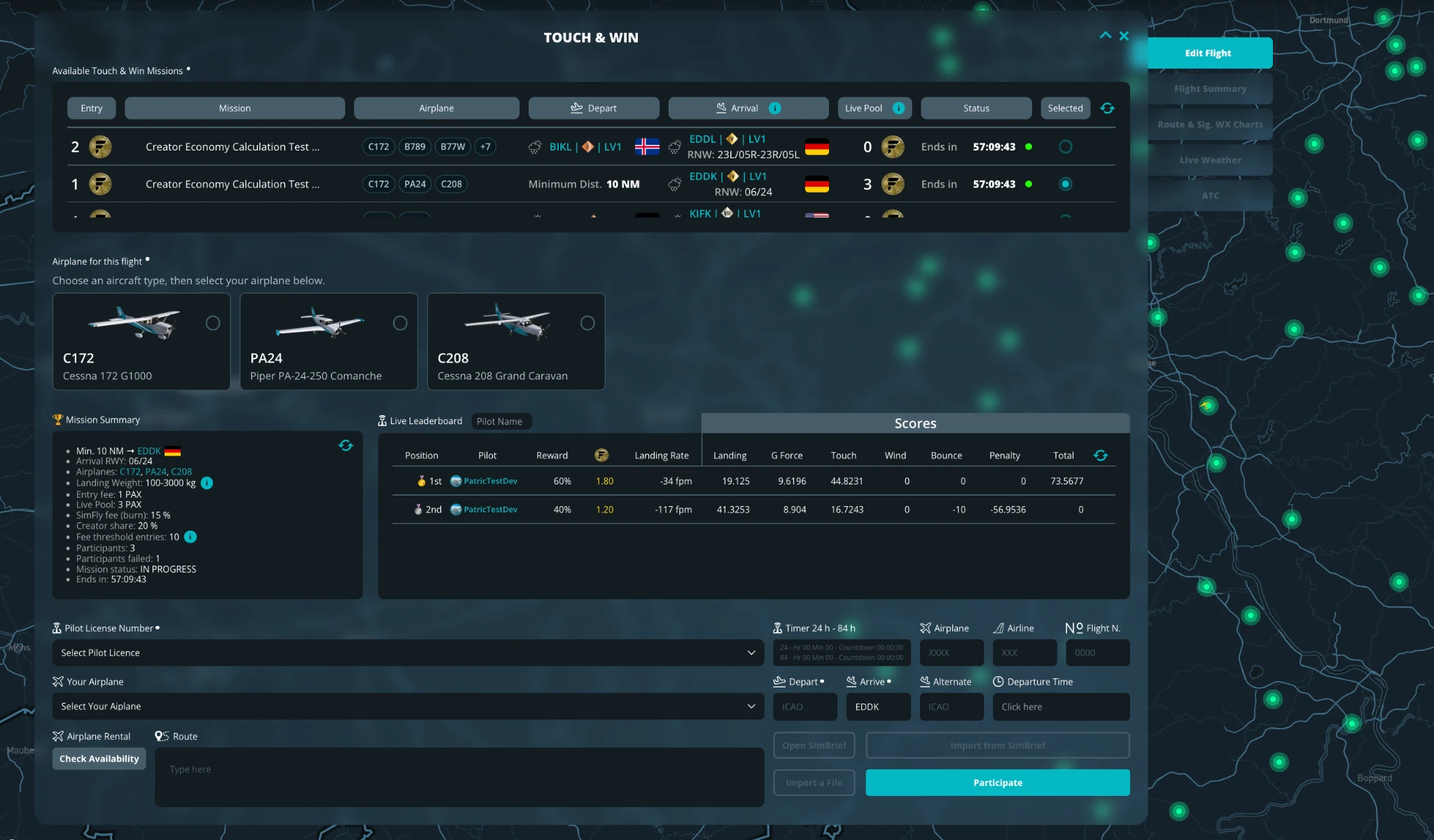
The cards shown there represent the aircraft types allowed for that mission. The pilot must choose one aircraft type for that specific participation before continuing.
The selected aircraft type must match the aircraft actually used in the simulator. The Analyzer validates the aircraft effectively used by the pilot.
After the selection, the pilot may:
- use a personally owned aircraft, if it matches the selected aircraft type;
- use an aircraft from the SimFly Bank, if one is available and compatible with the selected type;
- or check whether a compatible rental aircraft is available.
Even when a mission allows multiple aircraft overall, only one aircraft can be selected per participation.
Airplane Rental and Check Availability #
After selecting the aircraft type for that participation, the pilot can use Check Availability to search for compatible rental aircraft.
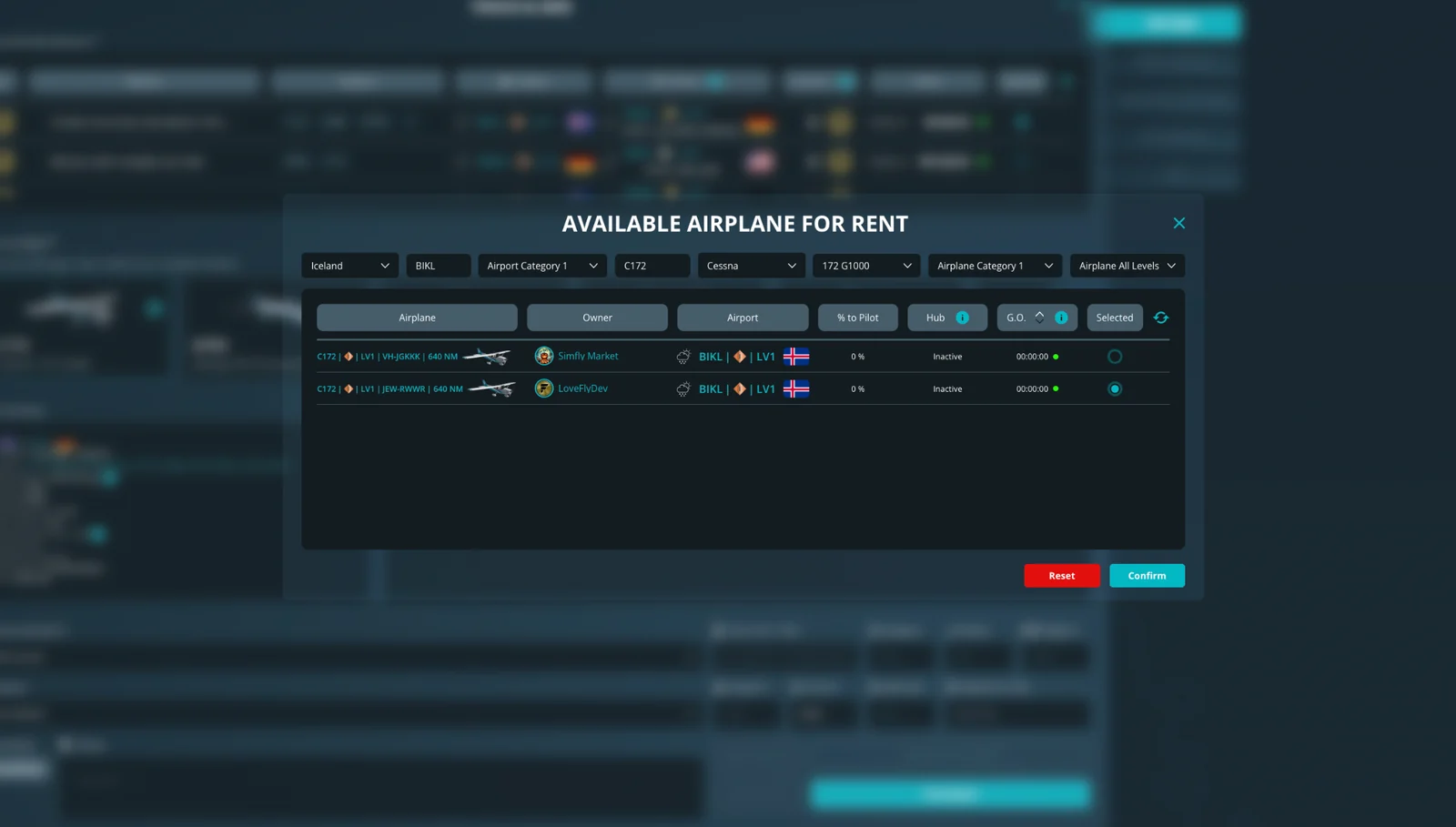
The availability check uses the selected aircraft type together with the current departure context to narrow the rental search and show compatible options.
Selecting a rental aircraft does not bypass the mission rules. The aircraft used for the participation must still match the selected aircraft type and comply with the mission requirements.
Runway Validity #
The mission page shows the runway or runways configured for the competition.
A runway label such as 06/24 represents the two ends of the same physical runway. The mission can therefore allow the physical runway pair while the landing direction depends on which end is used.
The pilot is responsible for landing on one of the permitted physical runways.
Physical runway and scoring geometry are not the same thing. Current Scoring V2 missions can use effective scoring thresholds and scoring limits that differ from the physical runway dimensions. Pilots should therefore review the public runway map and Score Guide before flying instead of assuming that the physical runway threshold markings alone define the scoring target.
If the pilot reaches the correct destination airport but lands on a physical runway that is not configured for the Touch & Win mission:
- the participation remains recorded;
- the participation remains visible in the leaderboard;
- a 100% Touch & Win score penalty is applied;
- the final Touch & Win result becomes 0;
- the normal SimFly flight remains separate from this Touch & Win penalty;
- normal flight XP and PAX are not cancelled solely because of the Unconfigured Runway condition.
Landing at the correct airport is therefore not sufficient: the runway must also be one of those configured for the competition.

In the case of a touch & go, the landing is not evaluated as the final full-stop landing. The pilot may continue until a valid full-stop landing is completed, subject to the active mission rules.
Entry and Participation Fee #
To participate in a Touch & Win competition, the pilot opens the mission page, reviews the published conditions and starts the mission through the dedicated interface.
Attention
Before starting, the pilot should verify all mission details shown on the public event page. By choosing to participate, the pilot accepts the challenge as configured and published.
The applicable Entry Fee is charged according to the normal Touch & Win participation workflow. For current user-created missions, the configured Entry Fee can range from 1 to 50 PAX.
The aircraft selected for the participation is part of that attempt and must match the aircraft actually used in the simulator.
Unless the mission explicitly states otherwise, each new paid participation / attempt is processed independently and requires its applicable Entry Fee.
No Refund Policy #
Once the pilot starts or attempts to start the mission, the Entry Fee is non-refundable except where expressly required by the SimFly Terms and Conditions or applicable law.
No refund, compensation or credit is granted merely because of:
- interrupted flights;
- connection loss;
- simulator crashes;
- SimFly Client closure;
- incomplete or invalid flight data;
- user error;
- penalties or disqualification;
- failure to meet mission requirements;
- failure to achieve the desired score, ranking or prize;
- changing your mind after joining;
- considering the mission too difficult, too easy or unsuitable after participation.
The official mission result is determined by SimFly systems and the proprietary Analyzer.
Creator Cancellation and Paid Participation #
For the current user-created workflow, a Creator can normally cancel a Published / Scheduled mission only when:
- the mission has not started;
- there are no paid PAX participations associated with it;
- the platform still reports the mission as cancellable.
This means that once a paid PAX participation exists, the Creator cannot cancel the mission through the normal Creator cancellation workflow.
SimFly retains separate administrative and moderation powers for technical, integrity, security or rule-enforcement reasons.
Multiple Attempts #
Unless otherwise specified by the mission, a pilot may participate multiple times in the same competition.
Each participation is processed independently and can generate its own score and applicable Entry Fee.
If the mission allows multiple aircraft, the pilot may choose one of the permitted aircraft types for each new participation, but still only one aircraft per participation.
Operational Restrictions #
Auto-Land
The use of Auto-Land is not allowed unless a specific mission rule explicitly states otherwise.
Autopilot below 2000 ft AGL
Autopilot must be disengaged above 2000 feet AGL during the descent phase. When a violation is detected, the current Analyzer applies a 2-point deduction for each detected flight data point that qualifies for the violation.
The detections are handled automatically by the Analyzer.
Touch & Win Scoring System #
Each landing is analyzed by SimFly using data recorded from the flight simulator and processed by the Analyzer.
For current Scoring V2 missions, the weighted result is built from the main components shown in the Flight Report:
- Landing Rate — 45%
- G-Force — 10%
- Touch — 45%
- Wind Bonus — added according to the applicable scoring rules;
- Bounces — can reduce the result;
- Penalty — can reduce or zero the final result.
The Touch component uses the runway-specific scoring geometry configured for the mission.
Total Touch Score = Longitudinal Score + Max Lateral Rollout Score
The separate touchdown Lateral Score may remain visible in the detailed analysis, but it is not added directly to the Total Touch Score.
Rollout matters after touchdown. The Analyzer evaluates the rollout data used for Max Lateral Rollout until the relevant rollout sequence reaches the low-speed cutoff, currently below approximately 30 knots. A good touchdown can therefore lose Touch points if the aircraft moves farther from the centerline during rollout.
Bounces are also penalized. The current Analyzer default is 10 points deducted per detected bounce; this value is configurable, so the official Flight Report is always the reference for the actual deduction applied.

Runway Scoring Geometry #
Current Touch & Win Scoring V2 missions can use runway-specific effective thresholds and independent scoring limits for each configured runway.
The public mission page may show:
- the configured runway;
- effective thresholds;
- centerline;
- longitudinal scoring zones;
- lateral rollout guides;
- the scoring table for the active runway.
The physical runway width and length are reference data and are not automatically the Touch & Win scoring limits.
The effective threshold is the scoring reference configured for that runway. It may be positioned inward from the physical runway end. The coloured longitudinal bands indicate progressively different longitudinal scoring zones, while the lateral guides show the rollout limits used by the challenge.
The scoring geometry can be different for Runway #1 and Runway #2, so pilots should review the active runway’s own map and Score Guide.

Main Evaluation Factors #
Depending on the mission and Analyzer result, the Touch & Win analysis can include:
- aircraft landing weight;
- recorded touchdown coordinates;
- longitudinal distance;
- lateral distance;
- maximum lateral rollout deviation;
- landing rate;
- G-force;
- bounces;
- wind and crosswind;
- sideslip and other recorded landing data where applicable;
- mission-specific penalties.
The exact official values are those recorded and displayed by SimFly.
Invalid Attempts, Zero Score and Penalties #
Not every problem has the same consequence. Some conditions deduct points, while others are zero-score / DQ-style Touch & Win penalties.
| Condition | Current Touch & Win effect |
|---|---|
| Landing Weight below minimum or above maximum | Weight Out of Range → final T&W Total Score 0 |
| Wrong configured departure | Final T&W Total Score 0 |
| Minimum Distance requirement not reached | Final T&W Total Score 0 |
| Connection interruption detected by the T&W Analyzer | Final T&W Total Score 0 |
| Landing on an Unconfigured Runway at the correct destination | Final T&W Total Score 0; participation remains recorded and visible in the leaderboard |
| Autopilot violation below 2000 ft AGL during descent | 2 points deducted per qualifying detection |
| Bounces | Current default: 10 points deducted per detected bounce (configurable) |
Other invalid, corrupted or non-analyzable flight data can prevent a normal result from being produced.
Unconfigured Runway is a specific certified case: the Touch & Win score becomes 0, but the flight itself, participation and normal flight XP/PAX handling remain separate from that specific runway penalty.
Official Validation and Official SimFly Score #
The final validity, score, ranking position and reward eligibility of each attempt are determined exclusively by SimFly systems.
Third-party software, plugins or external calculations may be useful for personal reference but do not replace the official SimFly result for rankings, prizes, disputes or compensation requests.
Live Leaderboard and Final Ranking #
As results are processed, the mission leaderboard displays the available competition results.
Depending on the mission, the leaderboard can show Position, Pilot, Reward, Landing Rate, Landing, G Force, Touch, Wind, Bounce, Penalty and Total.
At the end of the competition, the processed leaderboard becomes the reference for the final reward settlement.

Understanding the Flight Report #
The Flight Report keeps the normal SimFly landing information and adds the dedicated TOUCH & WIN Scoring Details section.
The report can show:
- Landing Weight;
- Landing Rate;
- G-Force;
- Crosswind;
- Bounces;
- detected Runway;
- recorded landing coordinates;
- distance values;
- Total Touch Score;
- Weighted Score Summary;
- Log Penalty.

Landing Score and Touch & Win Score are separate views. The normal SimFly Landing Score remains part of the Flight Report, while the dedicated Touch & Win section explains the competition result.
The Log Penalty is especially important when a requirement was not met. It can explain why points were deducted or why the final T&W result became 0.
The report can also show the actual detected runway and touchdown coordinates. For an Unconfigured Runway case, the report should use the actual detected runway rather than presenting a misleading scoring overlay from a different configured runway.
The map can help the pilot understand the touchdown position and rollout relative to the published runway scoring geometry. Where the interface displays Click to View Details, the interactive map is loaded when opened.
Prize Distribution Table #
| Position | Share |
|---|---|
| 1st place | 30% |
| 2nd place | 20% |
| 3rd place | 15% |
| 4th place | 10% |
| 5th place | 7% |
| 6th place | 5% |
| 7th place | 4% |
| 8th place | 3% |
| 9th place | 3% |
| 10th place | 3% |
The configured shares represent 100% of the Leaderboard Prize Pool.
If fewer eligible winning positions exist, the payout system may normalize the distribution across the eligible winners according to the active Touch & Win payout rules.
Prize Allocation and Settlement #
Prizes are not necessarily awarded immediately when the mission ends.
At least 24 complete hours must first elapse from the mission end date and time. The automatic Touch & Win settlement process runs once per day at:
00:30:00 UTC / Zulu
The mission can therefore be processed during the first 00:30 UTC settlement cycle that occurs after the full 24-hour eligibility period has already passed.
Example:
Mission ends: 3 September, 23:59:59Z
24 complete hours reached: 4 September, 23:59:59Z
First eligible settlement cycle: 5 September, 00:30:00Z
The settlement uses the final validated mission results and the economic configuration stored for that mission.
Technical, anti-fraud, scoring, security, moderation, maintenance or compliance checks may delay settlement where necessary.
Participant FAQ #
Can the Creator participate in their own mission?
Yes. The Creator may participate under the same published mission and platform rules.
Does the Minimum / Maximum Landing Weight really affect the result?
Yes. The recorded landing weight must be inside the published range, including the exact minimum and maximum boundaries. Outside the range, the final T&W Total Score becomes 0.
Why should I check the runway map if I already know the airport?
Because Touch & Win scoring can use effective thresholds and scoring limits that differ from the physical runway dimensions. The mission’s public runway map and Score Guide show the challenge you are actually flying.
What does a runway label such as 06/24 mean?
It identifies the two opposite ends of the same physical runway.
Can the Creator cancel the mission after I have paid an Entry Fee?
Under the current normal Creator workflow, a mission with paid PAX participation is no longer cancellable by the Creator. SimFly retains separate administrative powers where required.
Why can a pilot remain in the leaderboard with Total 0?
Some penalties, especially Unconfigured Runway, keep the participation recorded while reducing the final competition score to 0.
When are prizes paid?
After at least 24 complete hours have elapsed from the mission end, the mission waits for the first eligible automatic settlement cycle at 00:30 UTC / Zulu.
Acceptance of Rules #
By participating in a Touch & Win mission, the pilot confirms that they have reviewed the published mission information and accepts the applicable SimFly Terms and Conditions and mission rules.
For Touch & Win Creators #
Want to create your own competition? The complete Creator guide explains Drafts, Premium requirements, Mission Identity, Challenge Images, route rules, runway thresholds, Scoring V2, calendar capacity, Creator Economy, Review, Publish, cancellation, Flight Reports and Creator settlement.
Read: Create a Touch & Win Mission
Video Tutorial #


